Configuring SSO
Set up SAML-based Single Sign-On to allow your organization members to use custom Identity Providers to log in to Ethiack.
SSO via SAML enables your organization members to use custom Identity Providers to login to Ethiack.
If your organization's plan supports SSO, you can configure it by clicking the SSO menu in the security section of your settings, or go directly to https://portal.ethiack.com/settings/security/sso.
Okta Configuration
This guide provides a configuration example using Okta as an Identity Provider. Other providers may have different settings or steps.
- Click the Configure button.
- Go to your Okta Admin Dashboard.
- Create a new application by clicking Create App Integration.
- Select SAML 2.0 as the sign-in method.
- Give the app the name Ethiack.
- As the Single sign-on URL, paste the ACS URL displayed in the Ethiack Portal:
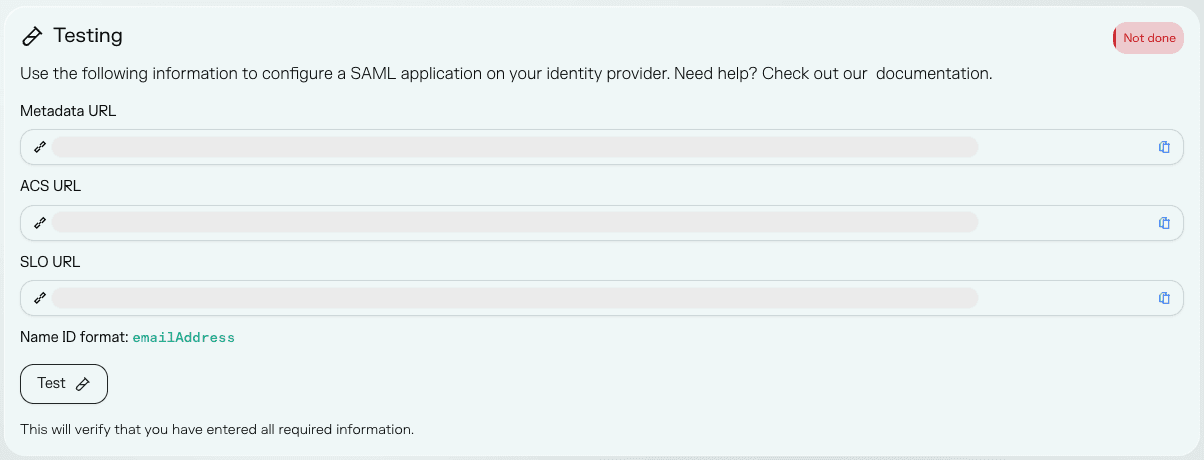
- As the Audience URI, paste the Metadata URL displayed in the Ethiack Portal.
- Select EmailAddress as the Name ID format and finish the app configuration.
- Assign users to the application.
- In the Sign On tab of the application page, expand the details.
- Go back to the Ethiack Portal and configure the following values:
- Issuer → Identity provider issuer
- Sign on URL → Single sign-on URL
- Sign out URL → Logout URL
- Signing certificate → Identity provider X509 certificate
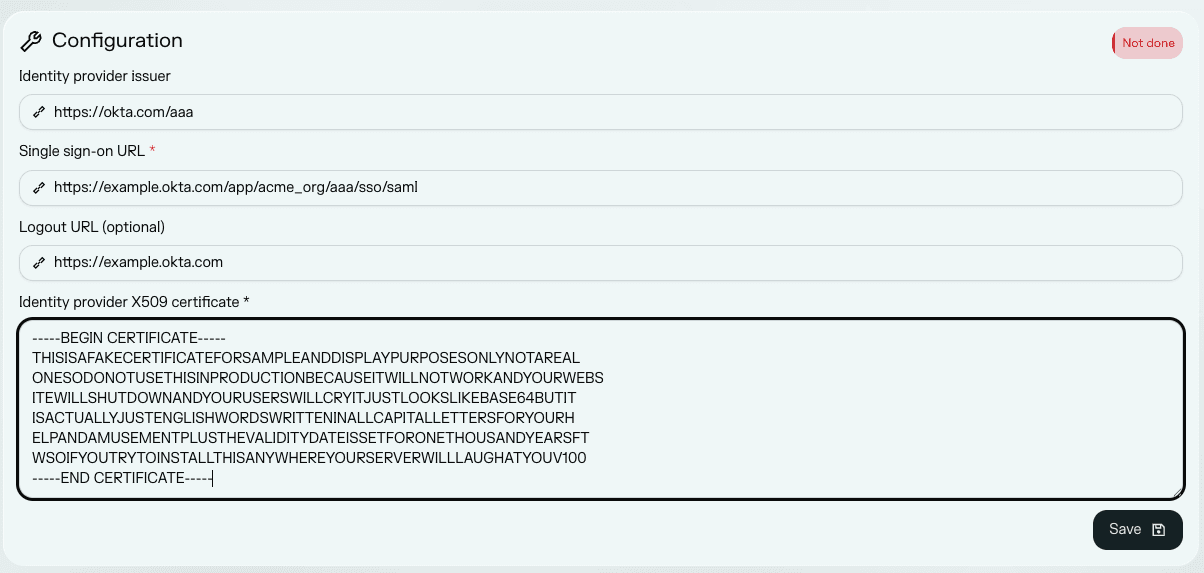
- Click Save and then click Test.
- If everything is correct, click the toggle to enable SSO.
If you run into any issues or need help with configuration, please reach out to support.