Inviting Organization Members
How to add new members to your organization in the Ethiack Portal.
To add members to your organization, you should not sign up a new member in the same way as you did initially during the onboarding process. This will lead to errors such as the organization already being registered.
To add a new member, log in as the owner that registered the organization (or an admin user). Go to Settings → Organization and select the Members tab.
In this tab you can see which members are already registered and their assigned roles.
Click Invite to add a new member, up to the maximum contracted limit. The number of available seats is shown on the top left of the panel.
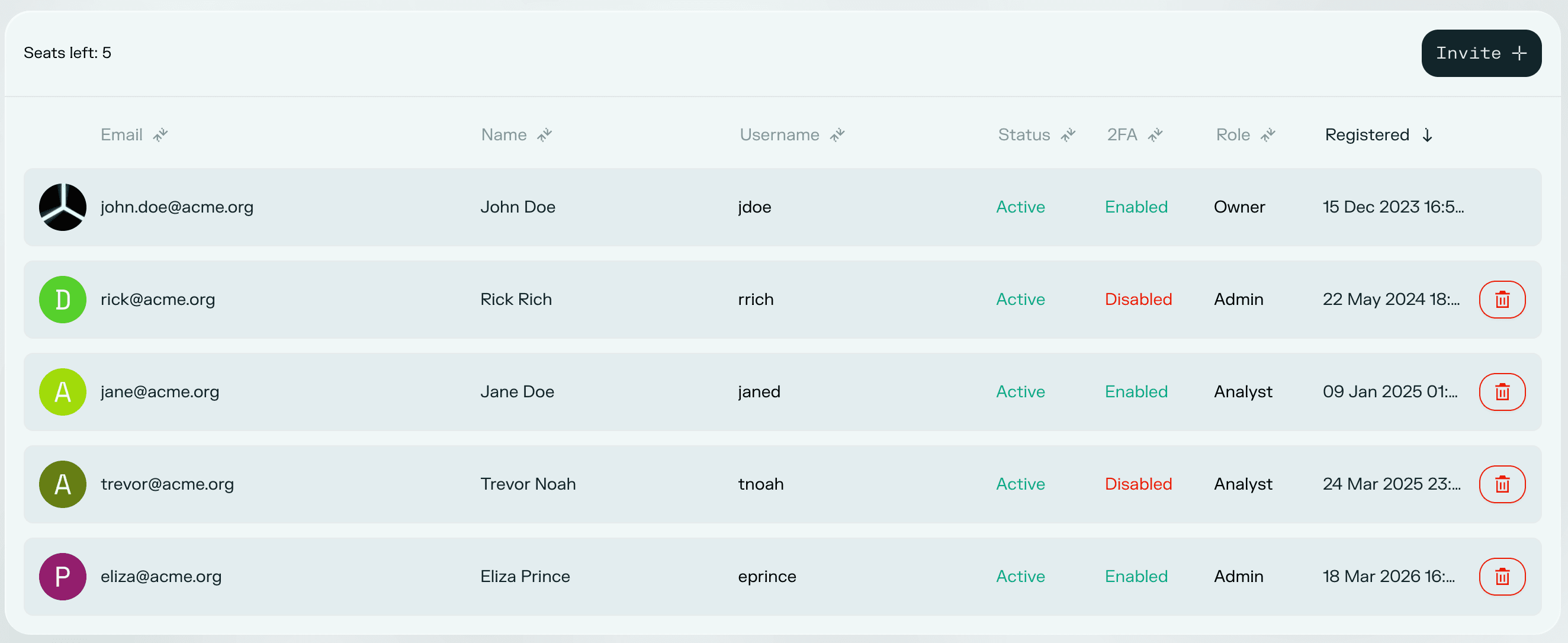
After clicking Invite, a pop-up will appear:
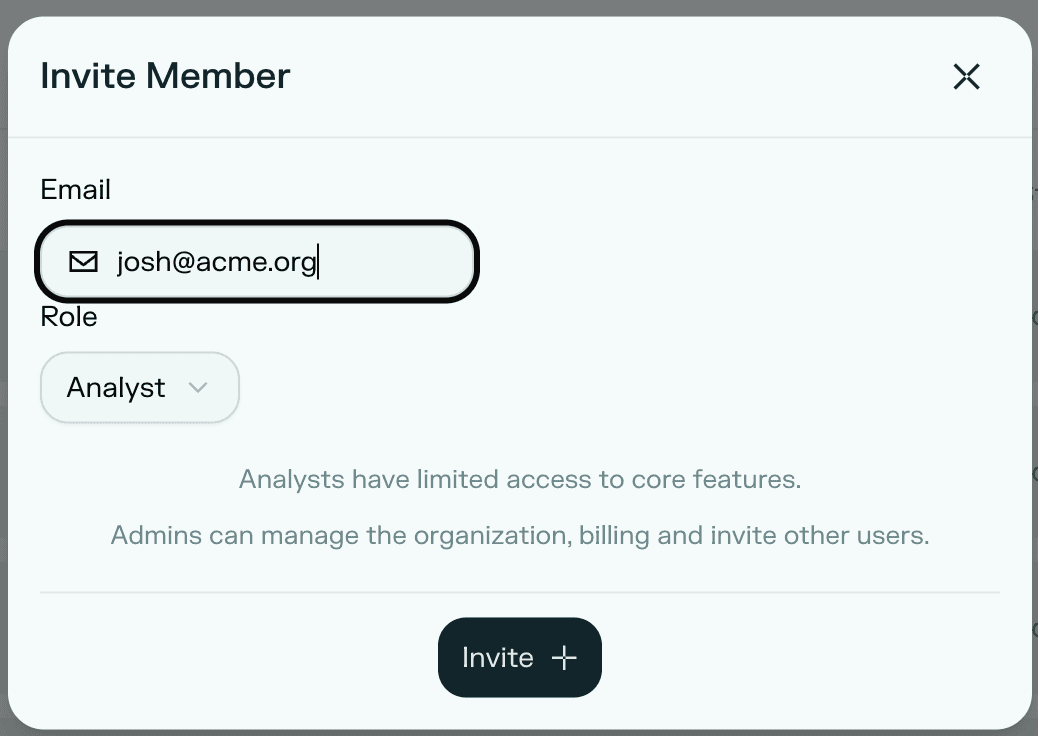
Enter the email address of the new member and select their role. There are two roles available:
Admin: Can manage the organization, billing, and invite other users.
Analyst: Has limited access to core features.
Click Invite and your colleague will receive an email with the next steps. Once they complete onboarding, they will appear in Settings → Members.